Have you ever missed an appointment because your calendar had a glitch? Don’t worry, we’ll be discussing how to connect your Google Calendar to GoHighLevel so that everything remains in sync and you don’t miss an event.
Integrating GoHighLevel Calendar Setup with Google Calendar helps companies achieve higher productivity and effective time management.
Google Calendar lets you set reminders, schedule appointment dates, and finalize your availability with your clients and employees. Furthermore, connecting your personalized Google calendar provides new functionalities such as two-way syncing and improved communication.
Integrating your Google Calendar with GoHighLevel Calendar Setup eliminates the double work of entering schedules and appointments in both calendars differently. Meaning that the integration process simplifies and enhances your scheduling plans for the upcoming period.
Methods to Connect Your Google Calendar to GoHighLevel
Following is a guide that enlists all the important steps for the integration of your Google Calendar with GoHighLevel.
Add – A graphical representation of the following workflow, simply suggesting the steps involved.
Step 1 – Logging into GoHighLevel Account
The first step for integrating both calendars is logging into your GoHighLevel Account. This step will lead you to the further steps necessary for the integration.
Step 2 – Finding “Calendars” Section
After logging in, click on the “Calendars” section in your GoHighLevel account. You will be then transferred to the GoHighLevel calendar setup page. Then select the “Settings” options in the calendars section to proceed further.

Step 3 – Finding “Integration” Section
In the settings section, you will see the “Integrations” button situated on the menu bar on the left.
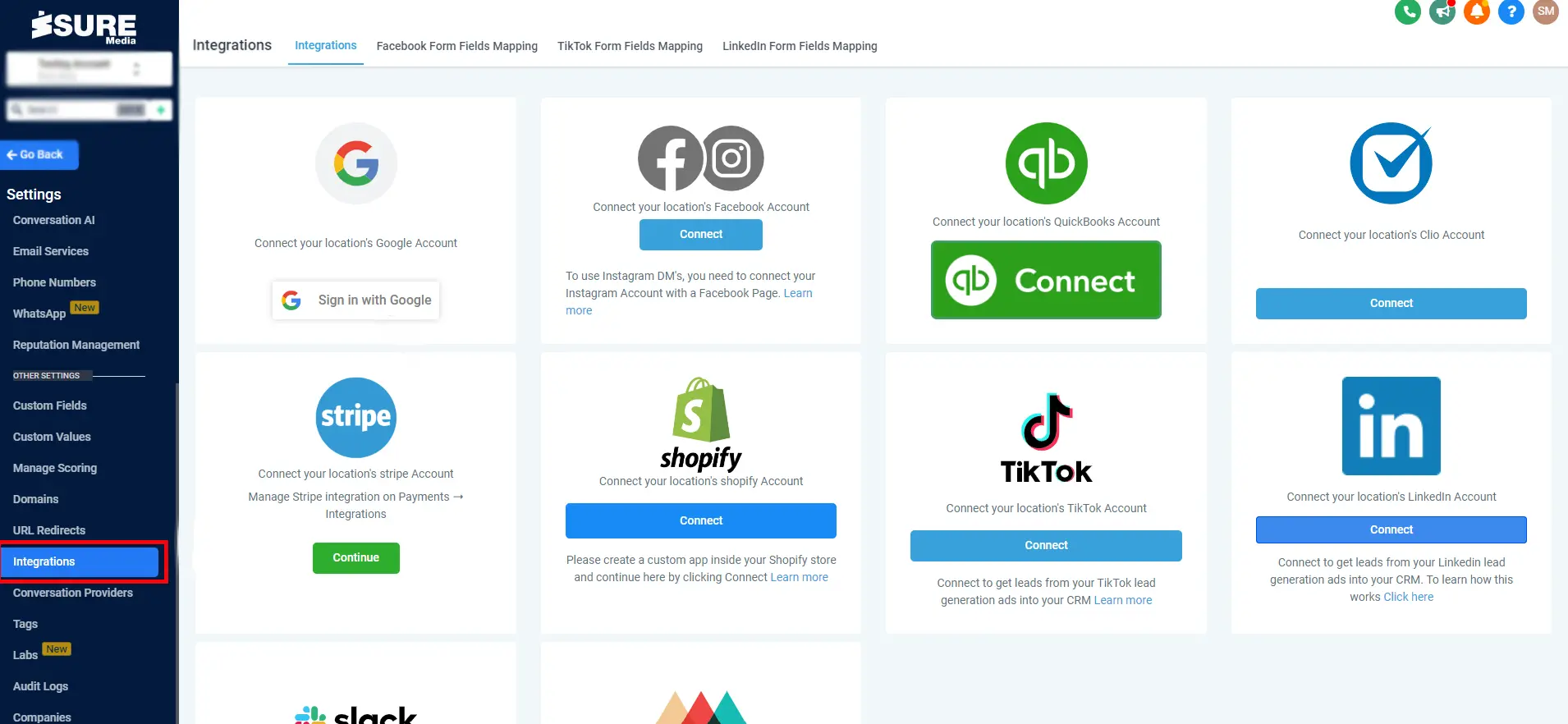
Click on it to see more available options for integrating your Google Calendar.
Step 4 – Connecting Google Account
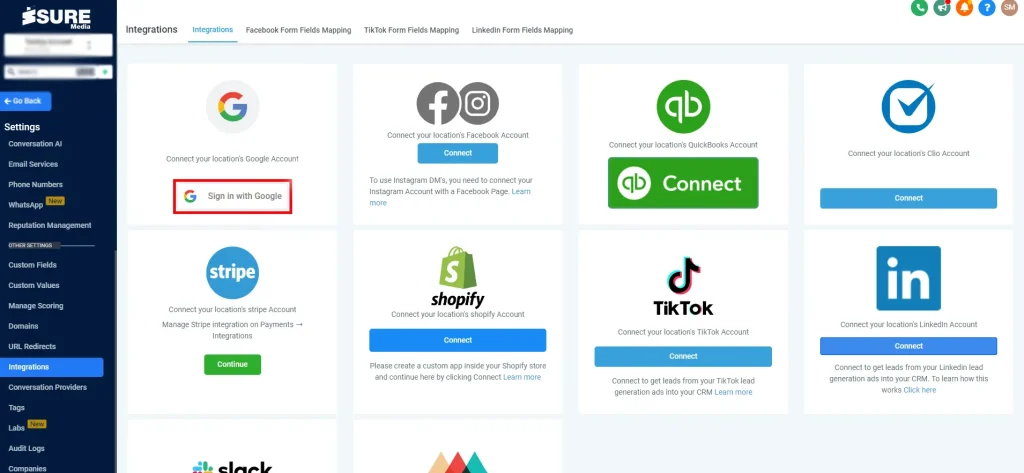
Click on the Sign-in button to proceed further.
To add your Google Calendar, you will be asked to provide the credentials of your Gmail. This event will lead you to the connector to integrate the process. You may proceed by clicking on the “Continue” button.
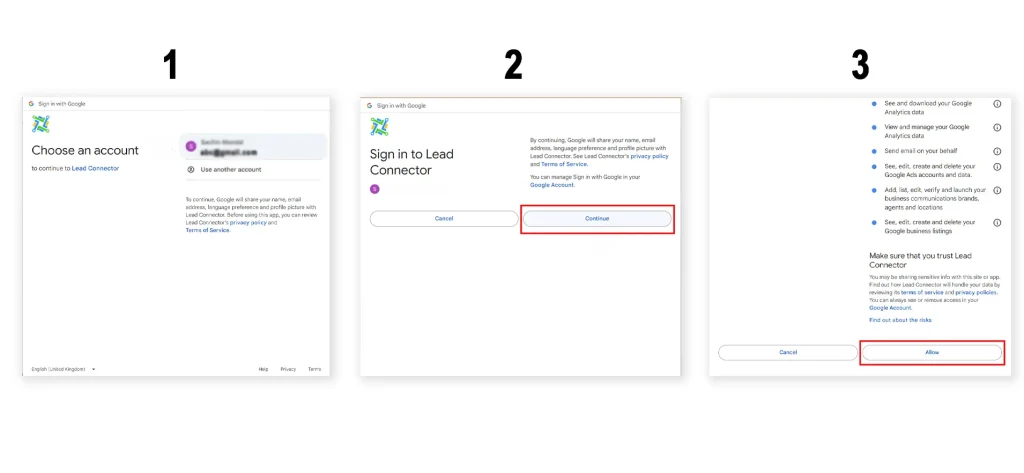
Click on “Allow” when asked for authorization. Relax, this is a secure process carried out by Google which is necessary for the connection. Your Google calendar connection will be completed after this.
Step 5 – Selecting and Syncing Calendars
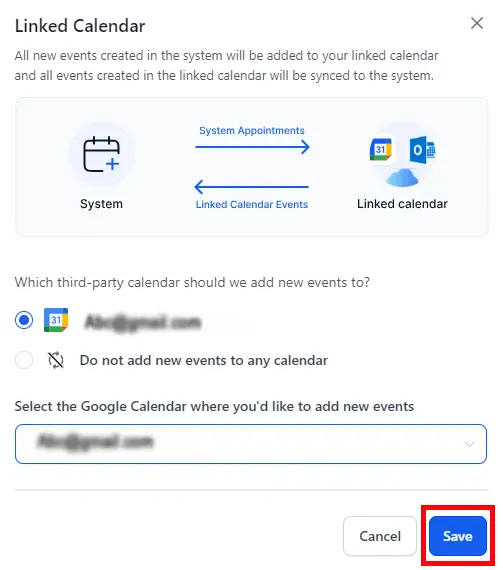
Once a connection is established, GoHighLevel offers you the choice to select the calendar that you want to integrate with it.
If this does not work, then you can go to the My Profile option located at the left side of the screen and then click on Calendar Configuration. And click on the “Add” button to interlink your Google Account with GoHighLevel.
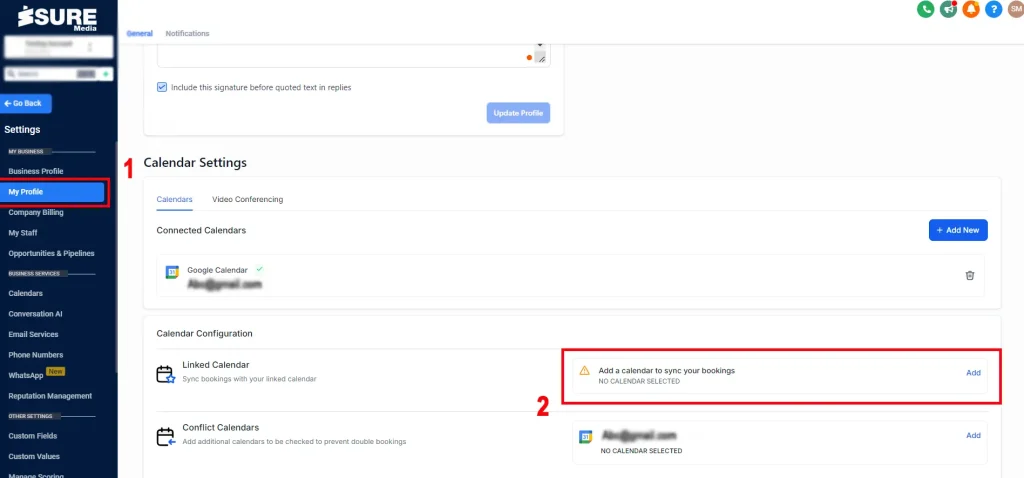
Step 6 – Saving the New Connection
Finalize the processes by clicking on the “Save” option to secure the connection between Google Calendar and GoHighLevel.
Still, having doubts? Contact Isuremedia for further assistance regarding GoHighLevel services!
Why Connect Your Google Calendar to GoHighLevel?
Connecting your Google Account to the GoHighLevel calendar setup can be beneficial for your business in many ways:
- Reduced Manual Work
Filling in the blank spots takes a considerable amount of time and makes the process prone to errors. Synchronization of both calendars reduces the overall manual work and saves up a lot of time. - Better Time Management
By having a clear image of the days ahead, you can plan other important business activities, delegate the work, and manage time more efficiently. GoHighLevel calendar setup helps you achieve such a feat through its automated workflow. - Bi-Synchronization of Calendars
When you connect your Google Calendar to GoHighLevel, you get the upper hand in the Bi-Synchronization of the calendars. This means if you appoint a date in your GoHighLevel calendar setup, it automatically shows up on your Google Calendar and vice-versa.
Fixing Common Issues While Connecting Google Calendar to GoHighLevel
After integrating both the Google and GoHighLevel calendars, you might still face some issues. However, such issues can be fixed through certain simple steps. Following are some common issues and their solutions listed:
- Missing Appointments/Events from GoHighLevel
If you know of certain events that are not being shown in the GoHighLevel calendar setup, then there might be an issue with the Google Calendar. You can mark certain events as busy when you want to see an appointment/event in the calendar.
Remember – Events that are marked as busy in the Google Calendar are visible in GoHighLevel. - Non-receiving of Updates
If you are not being notified about the latest updates regarding the calendars, then it means that there is some glitch in the notification settings of the tool.
To solve this issue, you can check whether your notifications are active by going to the notification settings. This issue can be resolved by turning on the notifications for updates. - Double Booking
The issue of double booking occurs when the Google and GoHighLevel calendars are not in Sync. To avoid this issue, make sure both your calendars are linked and integrated properly.
Furthermore, you can set any one of the calendars in the GoHighLevel account as primary to ensure that this problem is resolved. Make sure the other calendars are synced with the primary calendar.
If you are facing any problems apart from these, then you can reach out to Isuremedia for GoHighLevel expert assistance.
Takeaway!
Connecting your Google Calendar to the GoHighLevel calendar setup is an easy task that includes certain small steps. You can use this feature of GoHighLevel to induce optimized time management into the workflow of your business. Having an integrated calendar with GoHighLevel can eventually boost the overall efficiency and productivity of the business.
If you still have any questions regarding connecting your Google Calendar with GoHighLevel, you can contact us.