Table of Content
Introduction
GoHighLevel Calendar mistakes can put you into serious trouble. If not fixed, the mistakes can make you miss or clash an appointment!
The GoHighLevel calendar help you stay on top of your appointments through their automation functionalities. These apps can be integrated with several other websites and apps for greater efficiency.
However, these systems too are prone to errors and mistakes at the same time. These mistakes can cost you a lot if you are punctual about your appointments. Time management is the key to a successful business and Go High Level calendar is the most efficient tool that you can use to get the most out of it.
Mistakes in the GoHighLevel calendar are nothing but a normal issue. They are encountered by new and former users as well. Following are the 5 most common GoHighLevel mistakes that an organization can encounter.
GoHighLevel Calendar Mistakes
1. No Slot Available

Solution 1: Check if your Google Calendar is synced with the GoHighLevel Calendar. If synced, the full-day/recurring events might block your schedule.

Solution 2: Check for any conflicts if you use a simple calendar, also check the availability of the calendar. However, if you’re using Round-Robin Calender, go to “Settings” → “Your profile” and ensure that you have availability with the right timezone.
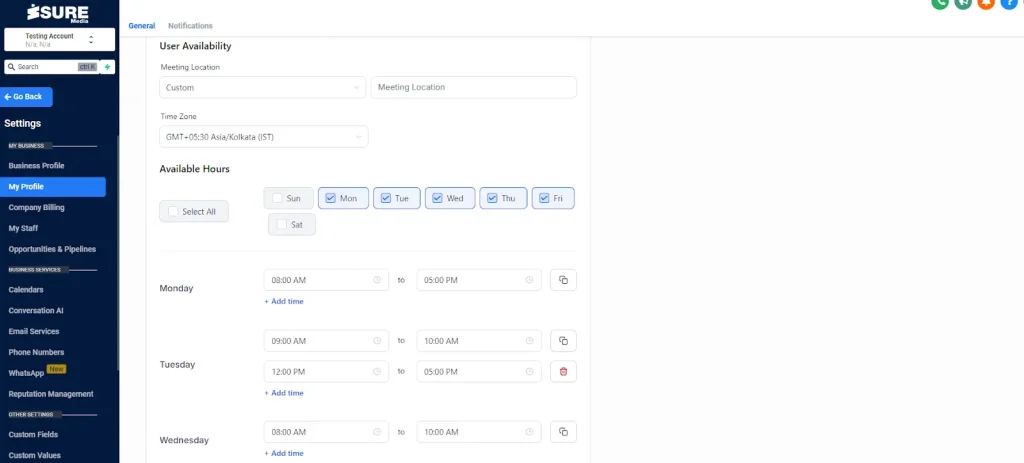
Solution 3: Cross-verify the time settings format, i.e., AM/PM. This setting might go unnoticed by many users due to its effectiveness and use.
Solution 4: Scroll down to the bottom in the profile settings. Check if there is any conflict in the calendar and take the necessary steps accordingly.
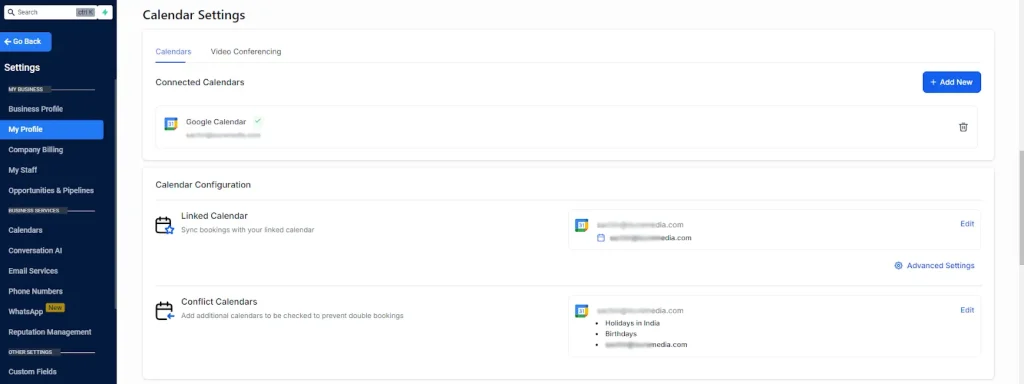
2: Appointments not showing on your go high level calendar appointments.
1. Go to the calendar configuration setting and make sure to select the right user with whom the appointment has been scheduled.

2. Visit the calendar from left navigation and at the bottom right make sure to select the calendar that you want to see and use.

3. If the GoHighLevel calendar shows Google or Outlook appointments in abundance, then you should consider their connection as broken. To fix this issue, you need to re-integrate the same with the respective users and calendars.
If you’re still confused by the steps, you can get easy solutions at our help desk. Book A Free call now!
3. Double Booking Blues - How to Avoid Appointment Conflicts
1. These kinds of conflicts occur when Google or Outlook are not in sync with the GoHighLevel calendars. Hence, make sure Google and Outlook calendars are integrated and linked properly with each other.
To cross-verify, you can go to the calendar tab and select the respective users and calendar. If you see your Google/Outlook appointments as well as the appointments booked in your GHL account, then it’s all syncing properly.

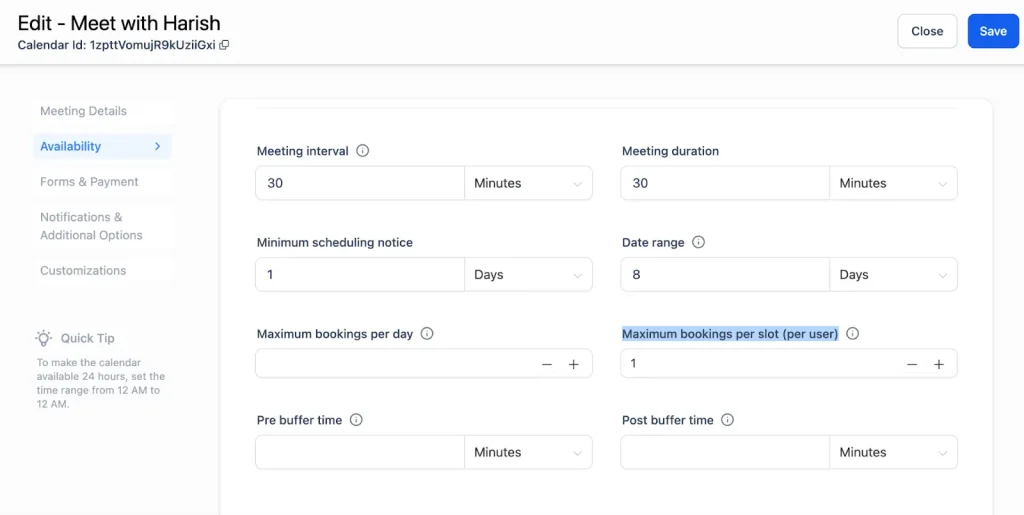
2. Check your calendar configuration and make sure you have set the maximum booking per slot to 1.
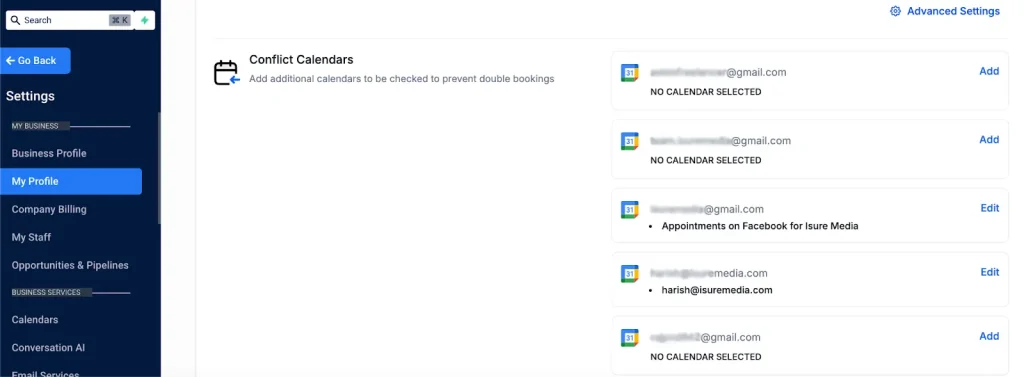
3. If you are using multiple calendars in Google or Outlook, then you need to choose any one of the calendars as your primary one.
For the other calendars that you use, besides the primary calendar, you will have to enable the check for conflicts option in the GoHighLevel Calendar. You can do this by going into Settings > My Profile > Conflict Calendars configuration.
Tired of fixing these errors all by yourself? Contact us now to get an expert for your chores!
4. Disappearing Time Slots
1. You might lose your potential leads if they’re not able to see any free slots. This happens because some events in your Google/Outlook calendar are marked as “Booked” or “Busy”. On the other hand, events or dates marked as free show clear slot availability.
To avoid this, check your 3rd party calendar for any added events or schedules. They might be blocking your availability.
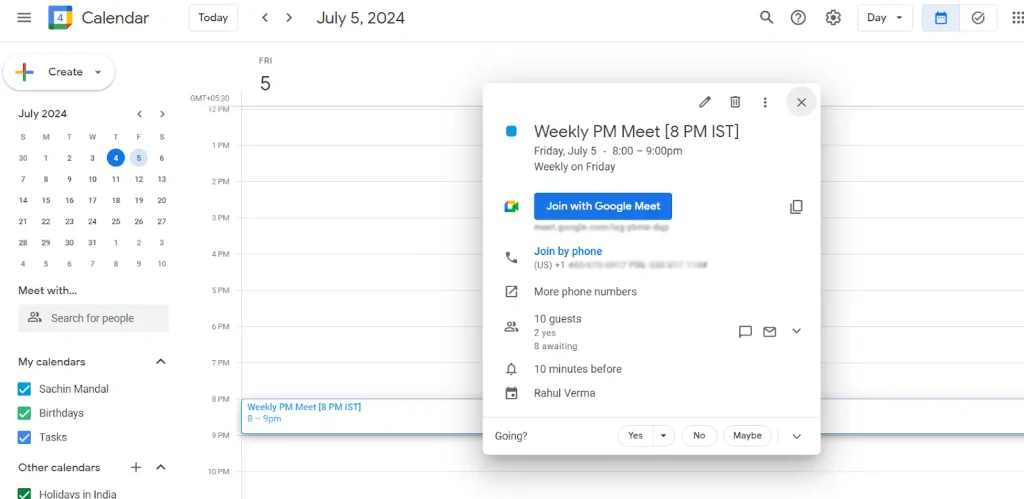
2. Sometimes a glitch is created in the process of integration between the Google and Outlook calendars. To fix this, remove the Google or Outlook integration and then reconnect them. Always double-check if you are able to see appointment slots in your calendar.
3. Double-check your Profile availability and timezone if you’re using a group/round-robin calendar.
4. Double-check your calendar availability.
5. Contact got reassigned to another user when booking an appointment
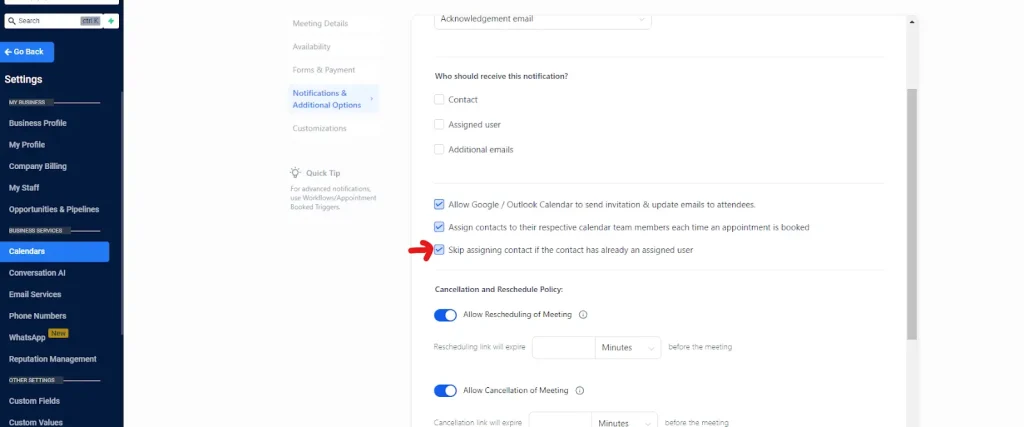
1. If you don’t want the contact to get reassigned to another user when they book a call/appointment, then please enable/check this option from the calendars(reference image attached below).
Go to calendars > edit calendar > Notifications & Additional Options > Who should receive this notification? > Enable/check the option “skip assigning contact if the contact has already an assigned user”
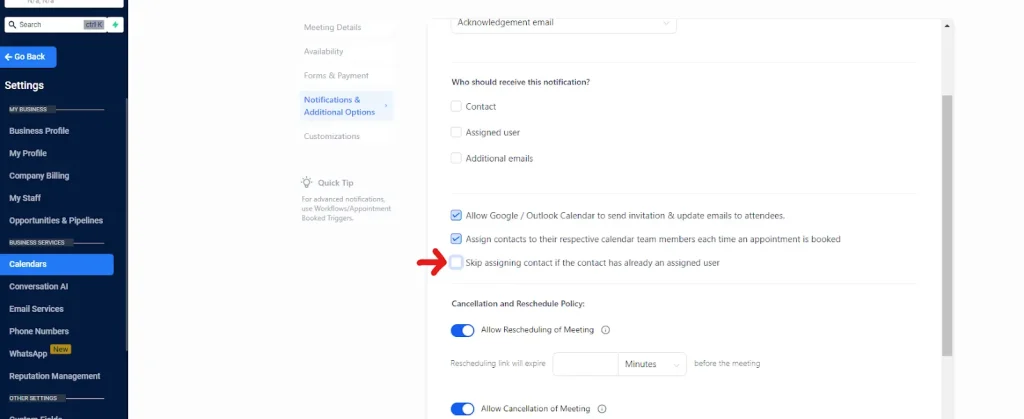
2. If you want the contact to be automatically assigned to the user they are scheduling with, then you can disable the “Auto-assign Contact” option from the calendar. A reference image is attached below.
Go to calendars > edit calendar > Notifications & Additional Options > Who should receive this notification? > Disable/uncheck the option “skip assigning contact if the contact has already an assigned user”
Still, having doubts? Watch our full tutorial video on how to fix 5 most common GoHighLevel calendar mistakes.
Bottom Line
Errors are common in the GoHighLevel calendar setup. However, all you need is to fix them promptly without any complications. This guide discusses the most common mistakes of the GHL calendar, their reasons, and the ways to fix them.
Finding solutions for the above-listed complications can be tough for you, hence we have collectively provided solutions for your common problems! Additionally, if you still do not understand these solutions, then you can contact our experts to get your job done easily.
To connect with us, you can visit our Instagram or Facebook handles.